Cornerstone
Follow these steps to connect Cornerstone to Gaia successfully.
Written By gaia
Ensure that your Cornerstone account has Admin privileges.
Generate Client ID and Secret key
1
Login to your Cornerstone portal.
2
Navigate to Admin > Tools > Edge > API Management.
3
On the Manage Applications tab, click Register New Application.
4
Enter your Application Name.
5
Enter the User ID of an active user in your portal.
6
In the Scopes section, select the scopes you want to associate with your application.
The following scopes are required to access the complete Gaia ATS integration.
jobrequisition:read
jobapplicant:read
vw_rpt_applicant:read
vw_rpt_requisition_location:read
vw_rpt_user:read
vw_rpt_requisition_posting:read
vw_rpt_requisition:read
vw_rpt_job_requisition_local:read
vw_rpt_applicant_interview_management:read
vw_rpt_job_requisition_applicant_status_local:read
7
Click Register Application.
8
If the User ID entered is valid, the page refreshes and displays a client ID and client secret. Copy both values to a safe place to be used in the next step
Connecting with Gaia
1
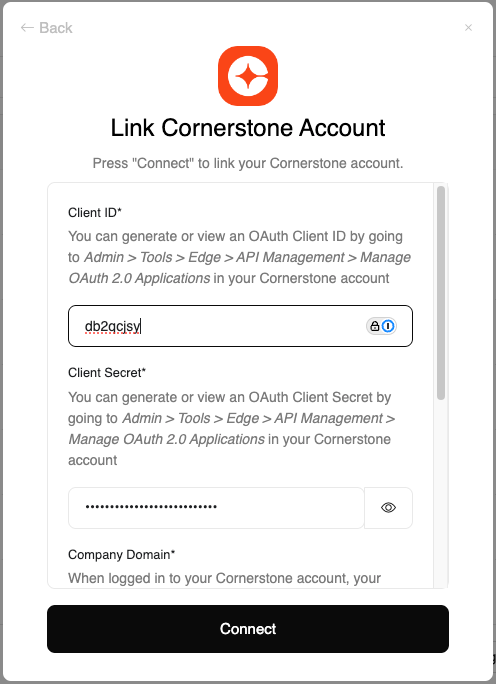
Enter Credentials
Upon reaching the Link Account page, enter the credentials from the previous steps and proceed by clicking the Connect button
Congratulations, you’re all set! If you face any issues with the steps mentioned above, please contact your account manager.